How to Insert Bullet Points in Excel
3/15/2019
In Excel, there is no default way to insert a bullet point like we have in Microsoft Word.
Actually, we can use different ways to insert bullet points in Excel.
- Select the cell in which you want to add a bullet point
- Hold alt key and press 7 or 9 to insert a bullet

- Select the cell in which you want to add a bullet point
- Go to Insert Tab ➜ Click on Symbol.
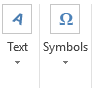
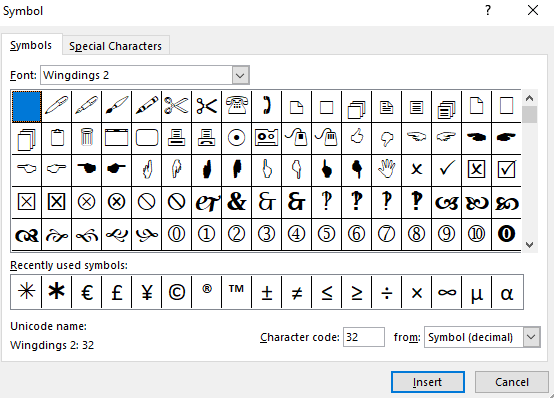
- Once you click on the symbol button, you’ll get a symbol dialog box.
- Once you choose your bullet point, just click on the insert to add in the cell.
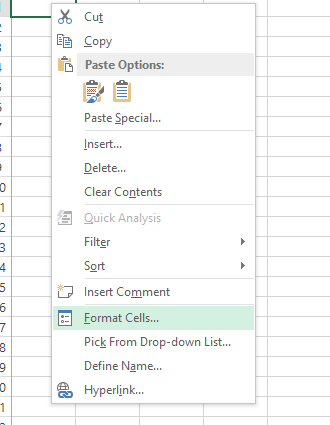
- Select the cell in which you want to add a bullet point, right click and choose “Format Cells” or Press Ctrl + 1 and you will get a format dialog box
- Under number tab, select custom. In type input bar, enter the following formatting.
● General;● General;● General;● General
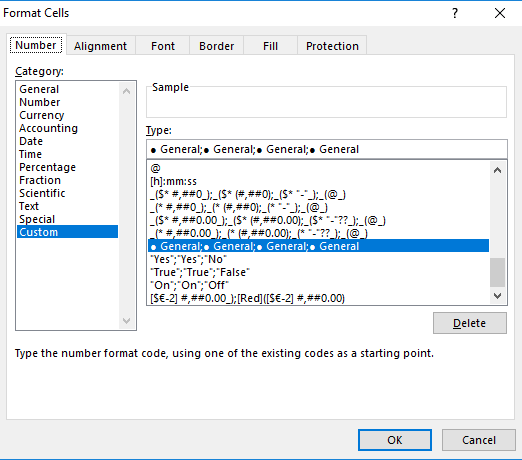
And now, when you insert a text or any number whether positive or negative, it will add a bullet in front of it.
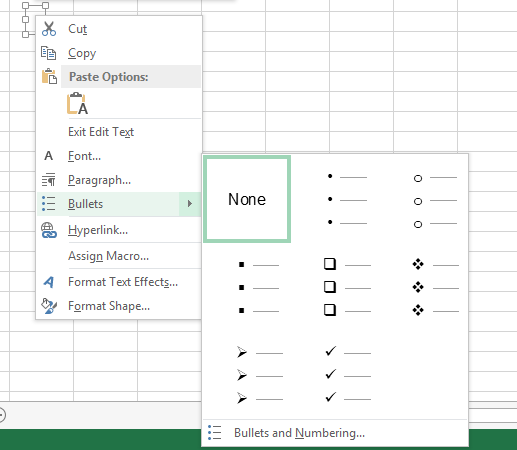
- First of all, insert a text box.
- Edit the text box and right click
- Click on the bullet option and select the bullet style to apply.
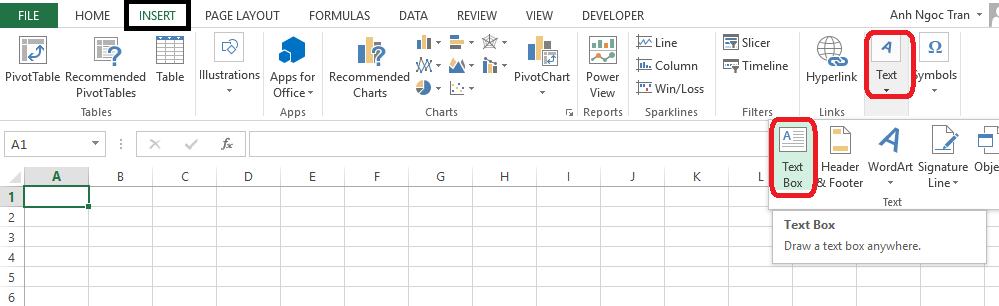
- Once you select your bullet style it will automatically insert a bullet at the start of each line.